
Web Ongoing Due Diligence
Get Started > Portal User Guide > Ongoing Due Diligence
ClearDil allows you to meet your Ongoing Customer Due Diligence (ODD) commitments by providing you with the means to screen your customers on a regular basis against our daily-refreshed databases and lists.
To complement your risk-based KYC screening process, it is recommended that you first perform screening on your customers. Once they have been successfully onboarded, then create ODD instructions to apply continuous monitoring, using ClearDil’s configurable frequencies and scopes. All of our ODD settings are at a customer level.
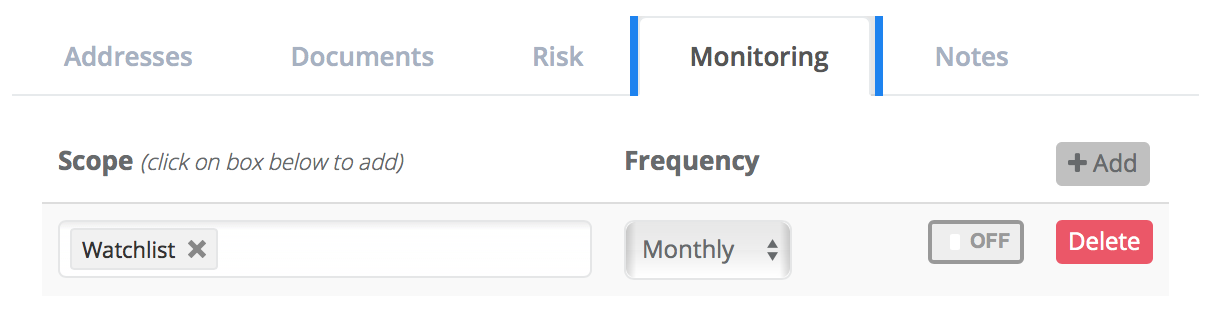
To setup ODD for a customer, click on the Monitoring tab on the Customer Profile page, then the Add button.

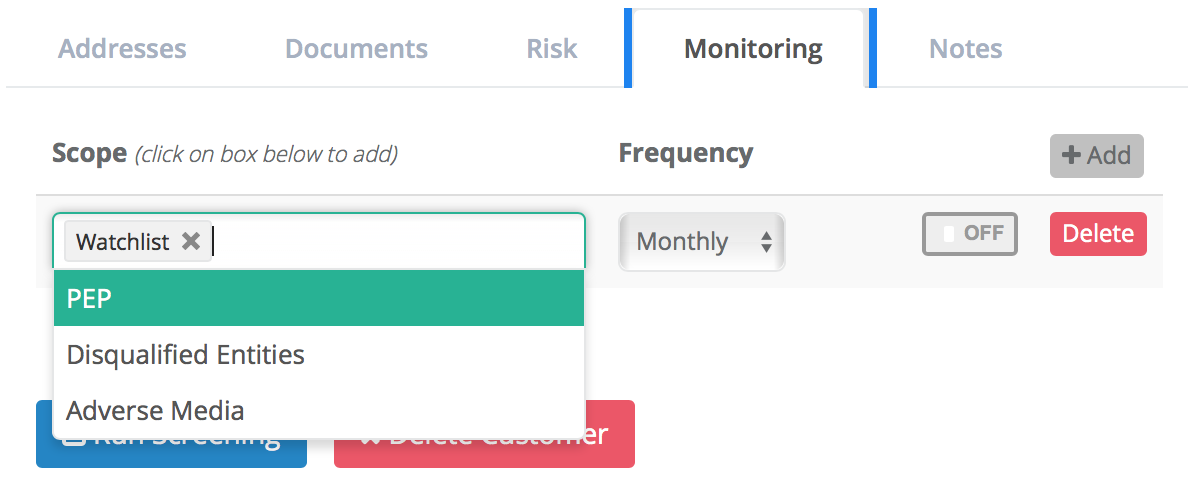
This adds an ODD instruction, which is disabled by default. Click on the scope and select Watchlist and PEP. You are also able to change the frequency of the ODD instruction. No need to change this for the example.
Now click on the On/Off toggle to ensure that it’s enabled.
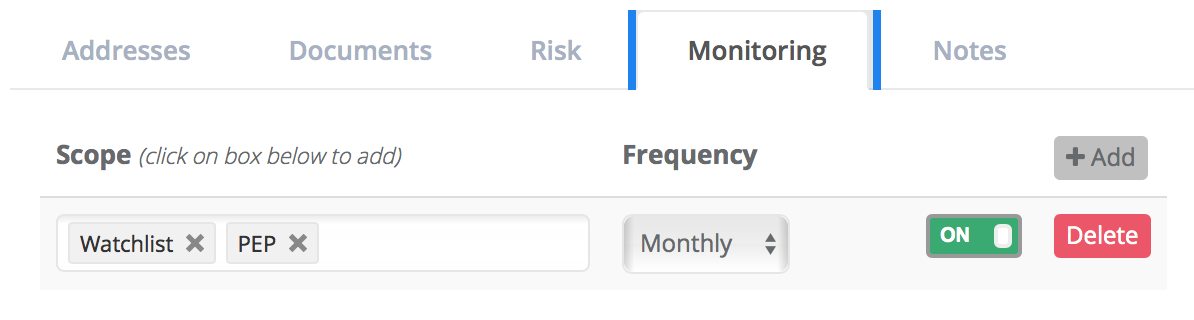
Unlike regular screenings, ODD-trigged screenings will exclude any ODD-flagged matches you have previously dismissed. This is intended to reduce the number of false positives and ultimately the manual burden on compliance officers.
Please note if you disable an ODD instruction, and enable it again, the ClearDil KYC Engine will perform a full screening on the reinstated ODD run.
ODD Management
ClearDil Ongoing Due Diligence (ODD) keeps your customers screened on a recurring schedule — daily, weekly, monthly, or annually — against the scopes you choose (watchlist, PEP, adverse media, and disqualified entities). It is distinct from one-off screening at onboarding: ODD runs automatically in the background and alerts you when new matches appear.
The customer list now gives you a portfolio-wide view of Running ODD and lets you filter, select, and bulk-apply ODD changes across many customers in one workflow — without opening each profile individually.
Running ODD means an ODD configuration that is both active and enabled: it is picked up by the scheduler and shown in the customer list. Paused or removed configurations are managed on each customer’s Monitoring tab (customer profile).
Overview
From the customer list you can:
- Audit coverage — see which customers have Running ODD and at which frequencies
- Filter cohorts — find customers with no ODD, or all customers on e.g. daily screening
- Bulk act — apply, pause, resume, or remove ODD for up to 2,000 selected customers at once
Concept
| Concept | What it means in the portal |
|---|---|
| Running ODD | Recurring screening that is currently scheduled (shown in the Running ODD column) |
| ODD status filter | Whether a customer has at least one Running ODD config, or none |
| Frequency filter | Customers with a Running ODD config at a specific schedule (Daily, Weekly, Monthly, Yearly) |
| Bulk ODD | One action — Apply, Pause, Resume, or Remove — applied to all selected customers |
| Monitoring tab | Per-customer ODD settings on the customer profile (scope, frequency, toggle, delete) |
Screening scopes (Apply action)
When you bulk-apply ODD, you choose one or more scopes:
- Watchlist — Sanctions and CTF lists (UN, OFAC, EU, UK, Australia, and 2,500+ official lists)
- PEP — Politically exposed persons and their associates
- Adverse Media — Trusted media and agency sources reporting financial crime or misconduct
- Disqualified Entities — Banned or disqualified persons and entities globally
Step 1: Open the customer list
Navigate to Customers in the portal. The list shows your portfolio with standard columns (Name, Email, Risk, and so on) plus a new Running ODD column.
Use the existing search and filters (date range, risk, customer type) together with the new ODD filters — they all combine.
Step 2: Read the Running ODD column
The Running ODD column shows which recurring screening schedules are currently running for each customer.
| Cell display | Meaning |
|---|---|
| None (muted text) | No Running ODD on this customer right now |
| Frequency badges (DAILY, WEEKLY, MONTHLY, YEARLY) | One or more active schedules |
Tips:
- Hover over None or over the frequency badges to see more detail. The tooltip on None explains that paused or removed configs are not shown here — check the customer’s Monitoring tab instead.
- Hover over badges to see scope per frequency, e.g. DAILY → PEP, Watchlist.
- A customer can have multiple frequencies at once (e.g. daily watchlist plus monthly PEP). Each appears as its own badge.
- None does not mean “never configured” — it means nothing is running at the moment.
Step 3: Filter by ODD status and frequency
In the filter row, use ODD Policy & Freq. to narrow the list before selecting customers or running a bulk action.
ODD status
| Option | Shows |
|---|---|
| All ODD | Every customer (default) |
| Has running ODD | Customers with at least one Running ODD config |
| No running ODD | Customers with no Running ODD config |
Frequency
| Option | Shows |
|---|---|
| All Freq. | Every customer (default) |
| Daily / Weekly / Monthly / Yearly | Customers with a Running ODD config at that frequency |
Combine both filters — for example, Has running ODD + Daily returns every customer on daily screening.
Tip: To onboard a cohort onto ODD, filter No running ODD, then use Select all N matching (see below) before choosing Bulk ODD → Apply.
Step 4: Select customers
Use the checkboxes in the first column to build a selection.
| Action | Behaviour |
|---|---|
| Row checkbox | Add or remove one customer from the selection |
| Header checkbox | Select or deselect every customer on the current page |
| Select all N matching | Select every customer that matches your current filters (across all pages) |
| Clear selection | Deselect all |
Selection rules:
- Your selection persists when you change pages — you can pick customers from page 1, go to page 2, and keep adding.
- You can select at most 2,000 customers. If more than 2,000 match your filters, narrow the filters (e.g. by date or ODD status) before using Select all N matching.
- When at the 2,000 limit, additional row checkboxes are disabled until you clear some selection.
When at least one customer is selected, a toolbar appears showing the count, a Bulk ODD button, and Clear selection.
Step 5: Run a bulk ODD action
Click Bulk ODD to open the bulk modal. Choose an Action, a Frequency, and (for Apply) at least one Scope, then submit.
Apply
Creates or updates ODD for every selected customer at the chosen frequency.
- Frequency — Daily, Weekly, Monthly, or Yearly (required)
- Scope — Select one or more screening scopes (required). Hold Ctrl (Windows) or Cmd (Mac) to select multiple.
- If a customer already has Running ODD at that frequency, the existing config is updated in place (same schedule, new scope) — duplicates are not created.
- Platform default data sources are used automatically.
Click Apply to submit.
Pause
Temporarily stops scheduled runs for the chosen frequency on each selected customer. The configuration is kept but hidden from the Running ODD column until resumed.
- Select Pause and the target Frequency, then click Pause.
- Useful during data migrations or maintenance windows.
Resume
Restarts scheduled runs for a previously paused frequency.
- Select Resume and the Frequency, then click Resume.
- Affected configs reappear in the Running ODD column; the next scheduler run picks them up.
Remove
Soft-deletes the ODD config for the chosen frequency only. Other frequencies on the same customer are not affected.
- Select Remove and the Frequency.
- Read the warning: “This soft-deletes the selected frequency tier only. Other frequencies on each customer are untouched.”
- Click Remove, then Confirm remove on the second step.
Remove requires two clicks — this helps prevent accidental deletion.
Step 6: Review results
While the action runs, the modal shows Processing batch X of Y… (large selections are processed in batches of up to 500 customers).
All customers succeeded
The modal closes, a success message appears (e.g. “ODD applied to 42 customer(s).”), the selection is cleared, and the customer list refreshes with updated Running ODD values.
Some customers failed
The modal switches to a results view:
| Column | Content |
|---|---|
| Name | Customer name (when available) |
| Customer ID | UUID for investigation |
| Reason | Why this customer failed (e.g. not found, no config at that frequency) |
A summary shows how many succeeded and how many failed.
| Button | Behaviour |
|---|---|
| Retry failed | Resubmits the action for failed customers only |
| Close | Closes the modal, refreshes the list, and keeps failed customer IDs checked so you can find them in the grid |
Per-customer failures do not block the rest of the batch. A customer ID from another tenant, or with no config at the requested frequency, appears in the failure table while other customers still succeed.
Common workflows
Onboard a cohort onto daily watchlist screening
- Open Customers.
- Set ODD status to No running ODD.
- Optionally narrow by Type or Risk.
- Click Select all N matching.
- Click Bulk ODD → Apply.
- Choose Daily and scope Watchlist (add PEP or others as needed).
- Click Apply.
Pause daily ODD during a migration
- Filter Frequency → Daily (and optionally Has running ODD).
- Select the affected customers.
- Bulk ODD → Pause → Daily → Pause.
- After migration: repeat with Resume.
Change scope for all weekly customers
- Filter Frequency → Weekly.
- Select all N matching (within the 2,000 cap).
- Bulk ODD → Apply → Weekly → select new scopes → Apply.
Upsert replaces the weekly config in place on each customer.
Remove one frequency tier only
- Select customers (e.g. all on Yearly via the frequency filter).
- Bulk ODD → Remove → Yearly.
- Confirm with Confirm remove.
Customers who also have daily or monthly ODD keep those other schedules.
Customer profile: Monitoring tab
Bulk ODD on the customer list complements — but does not replace — per-customer management on the Monitoring tab inside each customer profile.
| Task | Where to do it |
|---|---|
| See portfolio-wide Running ODD | Customer list Running ODD column |
| Filter and bulk-apply / pause / resume / remove | Customer list Bulk ODD |
| View paused configs, edit scope, toggle one customer, add/delete rows | Customer profile Monitoring tab |
The list shows Running ODD only (active and enabled). Paused configs remain visible on the Monitoring tab.
Limits and validation
| Limit | Detail |
|---|---|
| Selection cap | 2,000 customers per bulk operation |
| Batch size | Up to 500 customers per API batch (handled automatically) |
| Apply validation | Frequency and at least one scope are required |
| Remove | Two-step confirmation required |
If you see “Select at least one screening scope” or “Select a frequency”, complete the required fields before submitting.
Related guides
| Guide | Topic |
|---|---|
| Web Screen Customer | One-off screening and verification flows |
| Screening settings | Tenant screening configuration |